
IPTV Setup Guide
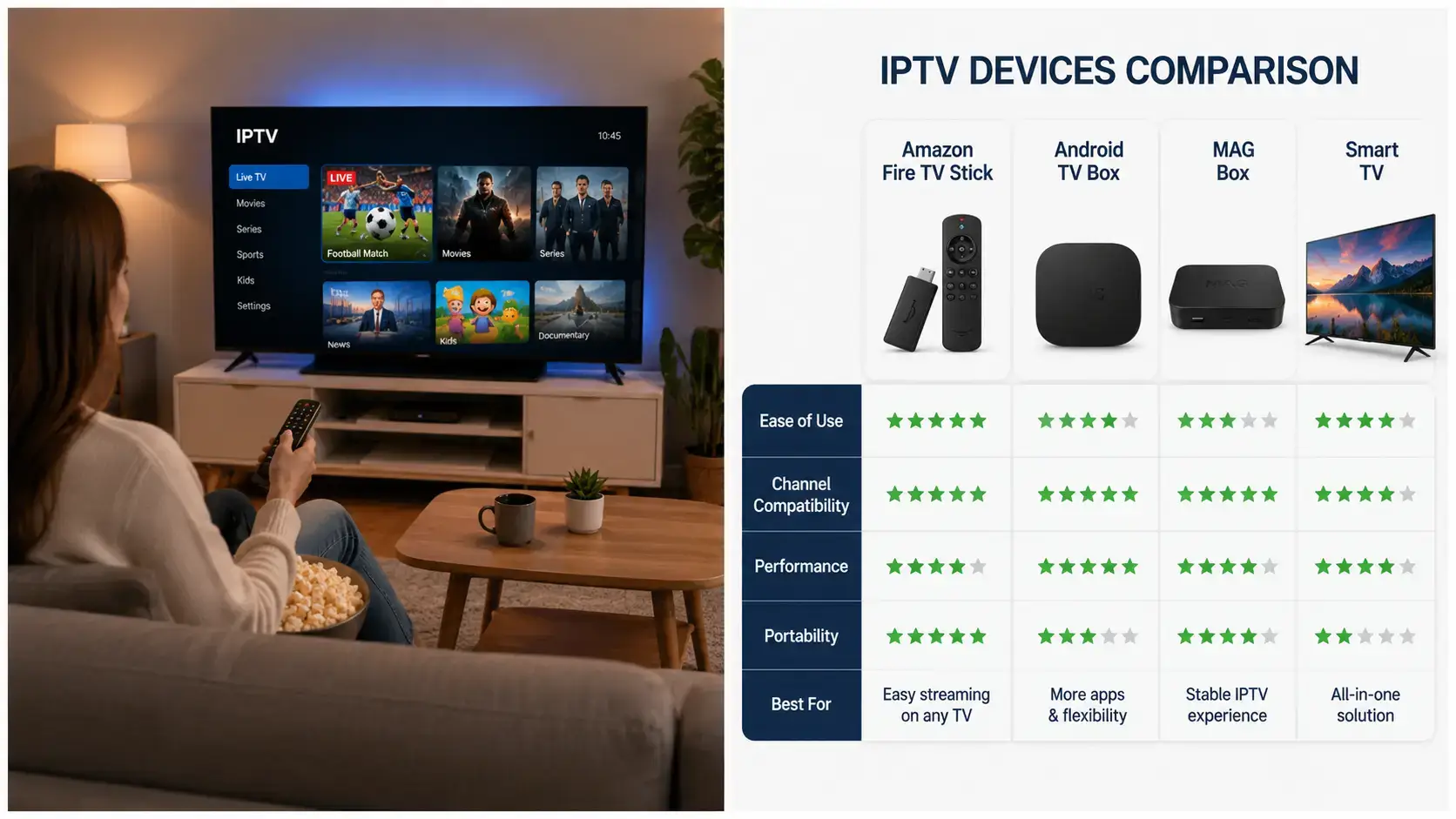
Setting up IPTV is easier than many beginners expect. With the right device, internet connection, and IPTV application, you can start streaming content within minutes. This guide covers the setup process across every major device type, plus the details most quick-start guides skip.
If you’re new to IPTV, read our What Is IPTV Guide first.
What You Need Before Setting Up IPTV
- A stable internet connection — at least 15–25 Mbps for HD, more for 4K (see the speed table below).
- A compatible device — Fire TV Stick, Android TV, Smart TV, phone, tablet, or computer.
- An IPTV application such as IPTV Smarters Pro, TiviMate, or XCIPTV.
- Your subscription’s login details — either an M3U playlist URL, or an Xtream Codes server address, username, and password.
M3U vs Xtream Codes: Which Login Method Do I Use?
Most IPTV subscriptions provide one of two login formats, and your provider’s welcome email will tell you which applies:
- M3U URL — a single link containing your entire channel playlist. You paste this directly into your chosen app.
- Xtream Codes API — a login-based system (server address, username, password) that also pulls in the electronic programme guide (EPG) and on-demand library automatically.
Both work with all the major apps mentioned in this guide — it’s simply a matter of entering the details in the right field when you add your playlist.
How to Set Up IPTV on Fire TV Stick
Fire TV Stick is one of the most popular IPTV devices because of its simplicity and performance. The process involves enabling app installs from outside the Amazon store, sideloading a player app via the Downloader app, and logging in with your subscription details.
For the complete step-by-step walkthrough, see our Firestick Installation Guide.
How to Set Up IPTV on Android TV
Android TV devices support a wide range of IPTV applications and provide a flexible streaming experience, since most players are available directly through the Google Play Store — no sideloading required.
- Open the Google Play Store on your Android TV device.
- Search for and install an IPTV application (IPTV Smarters Pro or TiviMate are both available directly).
- Open the app and choose to add a playlist.
- Enter your M3U URL or Xtream Codes details.
- Load channels and content — this usually takes under a minute.
How to Set Up IPTV on Smart TVs
Many Smart TVs — including Samsung, LG, and Android-based TV brands — allow users to install IPTV applications directly from their built-in app stores, so no external device is needed.
- Open your TV’s app store (Samsung Smart Hub, LG Content Store, or Google Play depending on your TV).
- Search for an available IPTV player app — availability varies by brand and region, so check what your specific TV supports.
- Install and open the app.
- Enter your subscription details (M3U or Xtream Codes) to load your channels.
If your TV’s app store doesn’t offer a suitable IPTV app, a Fire TV Stick or Android TV box connected via HDMI is a reliable workaround, and gives you access to a wider range of player apps.
How to Set Up IPTV on Smartphones and Tablets
Both Android and iOS devices support IPTV applications that can stream live television and on-demand content, which is useful for watching on the go or casting to a TV.
- Download an IPTV app from the Google Play Store (Android) or App Store (iOS) — IPTV Smarters Pro is available on both.
- Open the app and select “Add Playlist.”
- Enter your M3U URL or Xtream Codes login.
- Optionally, use screen mirroring or a Chromecast/AirPlay-compatible TV to cast the stream to a bigger screen.
Recommended Internet Speed
| Quality | Recommended Speed |
|---|---|
| SD | 5 Mbps |
| HD | 15 Mbps |
| Full HD | 25 Mbps |
| 4K | 50 Mbps+ |
These figures are per stream — if multiple people in your household stream simultaneously, add the figures together.
Common IPTV Setup Problems
Buffering
Slow internet speeds and unstable Wi-Fi are the most common causes of buffering during setup and playback.
Read our IPTV Buffering Guide for a full troubleshooting walkthrough.
Login Errors
Incorrect credentials are the most common cause of failed connections — double-check for typos, especially in Xtream Codes server URLs, which are case-sensitive.
Application Compatibility Issues
Some older devices, particularly TVs and boxes running outdated firmware, may not support the latest versions of modern IPTV apps. Updating your device’s software usually resolves this.
Frequently Asked Questions
How long does IPTV setup take?
Most IPTV setups can be completed within 5–10 minutes once you have your subscription details and a chosen app installed.
Can IPTV be installed on Smart TVs?
Yes. Most modern Smart TVs support IPTV applications through their built-in app store, though availability varies by brand.
Do I need a special device?
No. IPTV works on a wide range of devices including TVs, Fire TV Stick, Android TV boxes, phones, tablets, and computers.
Can slow internet affect IPTV?
Yes. Internet speed directly impacts streaming quality and how often you experience buffering — see the speed table above for recommended minimums.
What is the easiest IPTV device to set up?
Many beginners choose Fire TV Stick because the setup process is well-documented and the device is widely supported by most IPTV apps. See our guide to the best IPTV devices if you’re comparing options before buying.
Conclusion
Setting up IPTV is straightforward once you have the right device, application, and internet connection in place. Whether you’re using a Fire TV Stick, Android TV, Smart TV, or mobile device, the core process is the same: install a player app, enter your subscription details, and you’re streaming within minutes.
Pingback: IPTV vs Cable TV: Which Is Better in 2026?